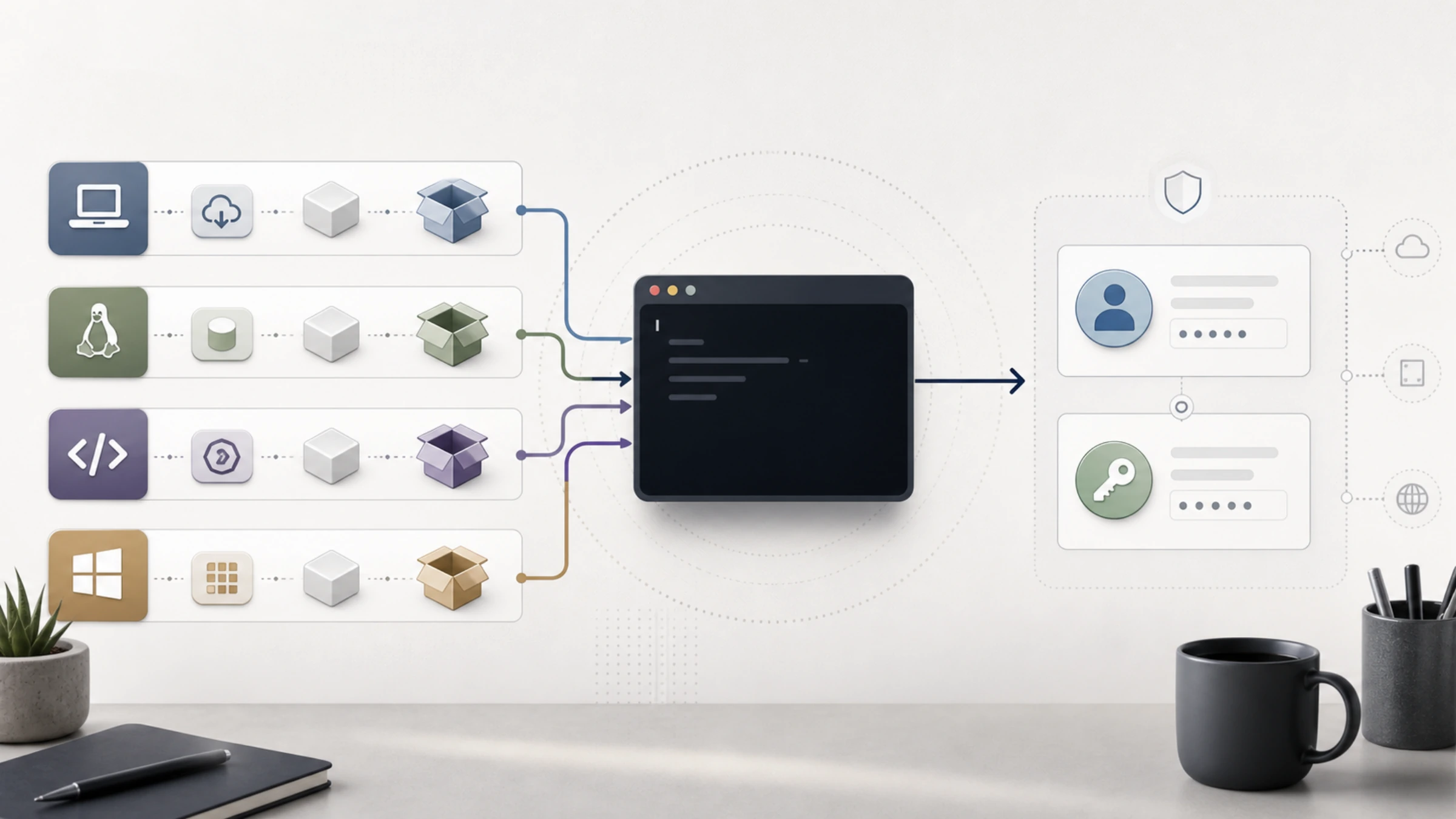
To install Codex CLI, choose one official route that fits your environment: the standalone installer for macOS/Linux or Windows, the npm package, or the Homebrew cask. Run that route's install command, open a project directory, and launch codex. If the CLI starts and offers a sign-in path, the executable is available to that shell; authentication is a separate checkpoint.
That distinction matters. A package manager can finish while the shell still cannot find codex, and the CLI can launch while an account, workspace, network, or managed device still blocks sign-in. The steps below keep those failures separate instead of prescribing a reinstall for every problem.
“Commands and authentication details below were checked against current OpenAI documentation on August 16, 2026. These surfaces can change, so recheck the linked official pages if you are reading later.
Pick one installation channel and keep its update path
Use the channel you can identify and maintain on your own machine. OpenAI's Codex CLI quickstart currently documents all four routes below.
| Environment or existing tool | Install command | Update command | What this establishes |
|---|---|---|---|
| macOS or Linux, standalone channel | curl -fsSL https://chatgpt.com/codex/install.sh | sh | Run the same command again | The current documented standalone route; not proof of success on every distribution or network |
| Windows, standalone channel | powershell -ExecutionPolicy ByPass -c "irm https://chatgpt.com/codex/install.ps1 | iex" | Run the same command again | The current documented Windows route; device policy or architecture may still affect execution |
| An environment where npm is already available | npm install -g @openai/codex | npm install -g @openai/codex | Installation of the official @openai/codex package; no universal Node.js minimum is asserted here |
| A machine where Homebrew is already available | brew install --cask codex | brew upgrade --cask codex | The current documented Homebrew cask route; it does not imply Homebrew is required or best for every reader |
Do not combine channels “just in case.” Pick one whose update path you are prepared to keep using:
- Use a standalone installer when it applies to your operating system and you do not want to depend on npm or Homebrew.
- Use npm only in an environment where npm is already working and maintained.
- Use Homebrew only on a machine where Homebrew is already part of your software-management workflow.
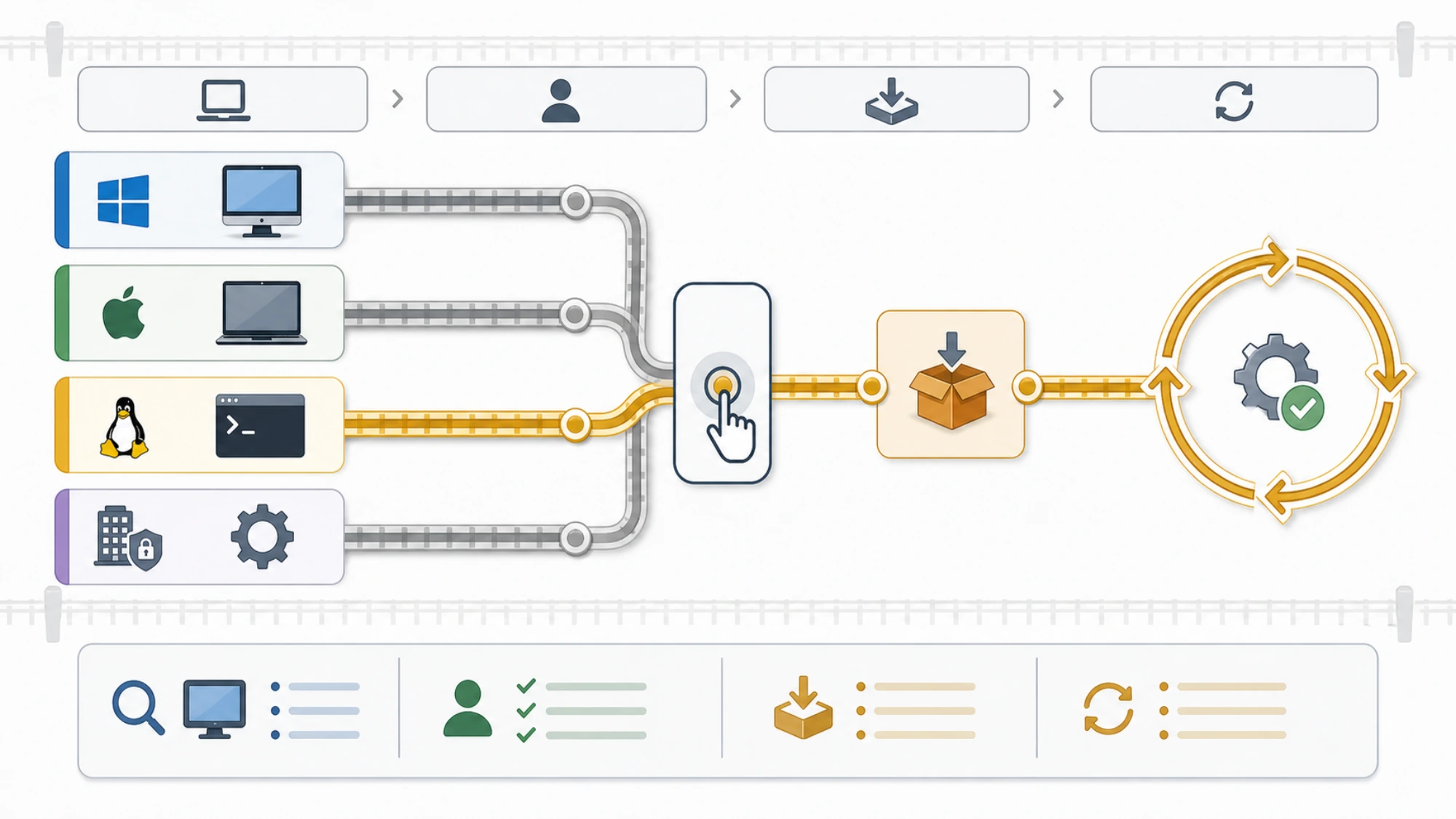
Choose one channel you can identify later; switching channels during an update can make it unclear which codex executable the shell is launching.
The commands that pipe a downloaded script into a shell are the commands OpenAI currently publishes. If your organization requires script review or blocks downloaded scripts, follow that policy rather than bypassing it. The official command's existence does not override controls on a managed machine.
The npm prerequisite boundary matters
The npm command requires a working npm environment, but the reviewed first-party Codex pages do not establish a universal minimum or recommended Node.js version. Do not borrow a version number from an older or third-party tutorial and treat it as an OpenAI requirement. If npm itself is unavailable, either consult the current Node.js/npm documentation for your environment or choose another officially documented Codex channel that applies to your system.
Launch codex from a project directory
After the installer or package manager finishes, open a terminal in a project you are prepared to work with and run:
bashcodex
This is the first-run path documented by OpenAI and corroborated by the official openai/codex repository. If the command launches and presents the sign-in flow, you have a useful, observable result: the current shell can resolve and start the CLI.
Keep that conclusion narrow. It does not yet prove that authentication will complete, that your account has a particular entitlement, or that Codex can reach every service from your network. This guide also does not treat codex --version as a universal official success test because that boundary was not established by the reviewed first-party quickstart.
If your shell cannot find codex
A “command not found” or “not recognized” message means the current shell cannot resolve the executable. It does not, by itself, identify whether the cause is a failed install, the selected channel, shell state, or PATH configuration.
Use a bounded check instead of pasting a random PATH fix:
- Confirm which one of the four channels you actually used.
- Check whether that installer or package manager reported an error.
- Open a fresh terminal and try
codexagain. - Return to the same channel's current official instructions rather than installing a second copy through another channel.
PATH layouts and policy restrictions vary, and the current reviewed OpenAI pages do not provide one universal repair command. On a managed Windows device, a PowerShell policy or organizational control may require an administrator-approved route; the documented standalone command is not a promise that every policy permits it.
Choose the sign-in model you intend to use
On first run, Codex CLI supports both ChatGPT sign-in and API-key sign-in. They are not interchangeable labels for the same billing or policy model. OpenAI's current Codex authentication documentation distinguishes them:
- Sign in with ChatGPT uses subscription access subject to the permissions and policies of the relevant ChatGPT account or workspace.
- Sign in with an API key uses usage-based API access and the applicable API organization policies and pricing.
Plan eligibility, workspace permissions, feature availability, pricing, and regional access can be conditional. The presence of both options in the CLI does not establish that a particular account can use both, or that both expose identical features.
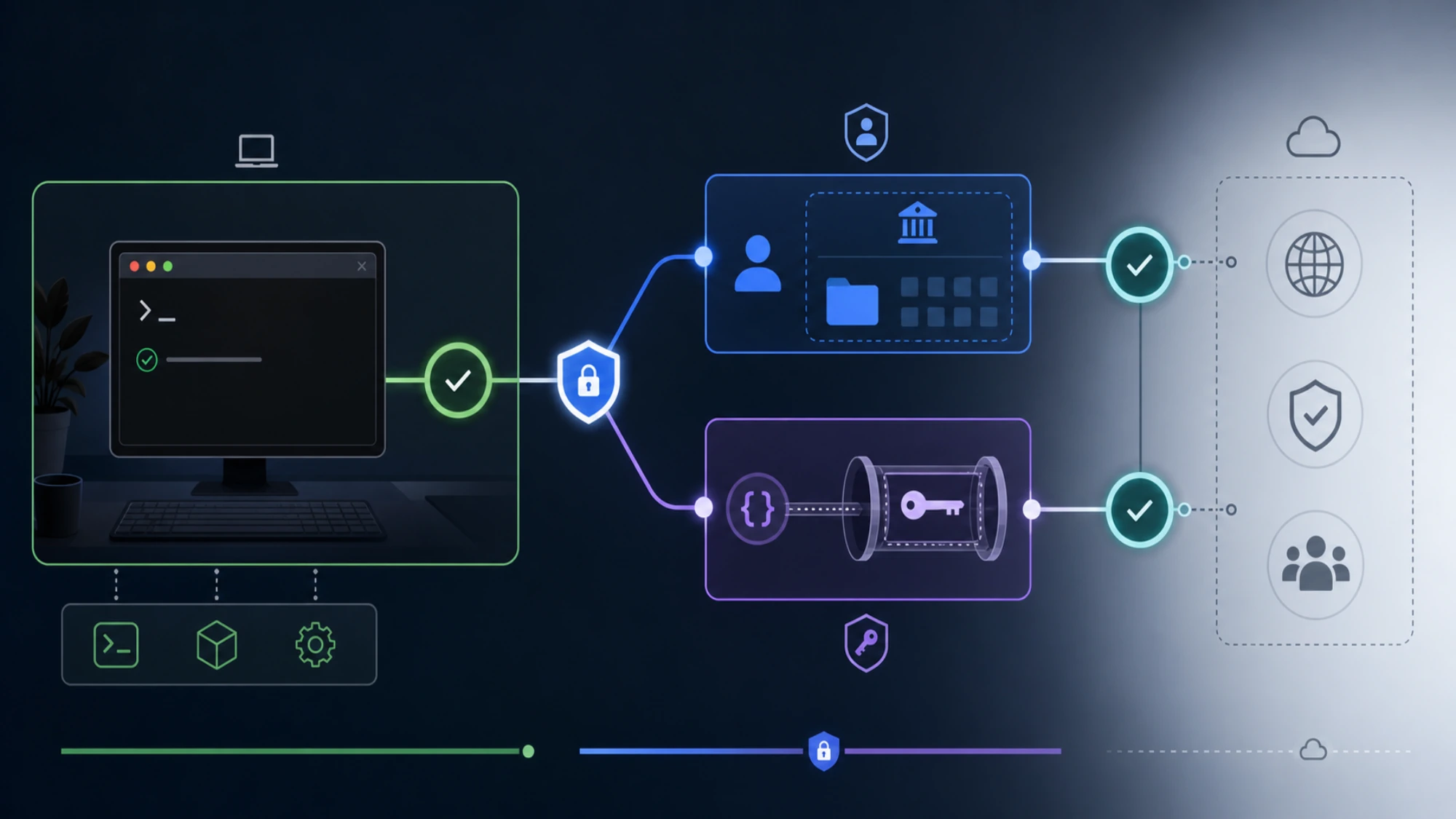
A launched CLI establishes executable availability in the current shell; it does not establish account eligibility, workspace permission, network access, or identical billing across sign-in methods.
To start the browser-based ChatGPT flow explicitly, the current documentation shows:
bashcodex login
For a shell that provides printenv, the documented stdin-based API-key flow is:
bashprintenv OPENAI_API_KEY | codex login --with-api-key
Passing the key through stdin avoids placing the secret directly in the command argument, but you are still responsible for how the environment variable was stored and who can inspect the environment. Never paste a key into public prompts, screenshots, shared logs, or an untrusted shell.
After attempting authentication, inspect the active method with:
bashcodex login status
To clear stored Codex credentials, use:
bashcodex logout
An authentication failure is not automatically an installation failure. Account permissions, workspace controls, network conditions, and regional availability can affect sign-in after the executable is already usable.
Update through the same channel
Codex CLI is a changing developer tool, so preserve the channel-to-update mapping rather than reaching for a different installer later:
- Standalone on macOS/Linux: rerun
curl -fsSL https://chatgpt.com/codex/install.sh | sh. - Standalone on Windows: rerun
powershell -ExecutionPolicy ByPass -c "irm https://chatgpt.com/codex/install.ps1 | iex". - npm: rerun
npm install -g @openai/codex. - Homebrew: run
brew upgrade --cask codex.
If the installed copy behaves differently from current documentation, first identify its original channel. Reinstalling through a second channel can make it harder to tell which executable the shell is launching.
Diagnose the checkpoint that actually failed
Treat setup as three separate checkpoints:
- Channel completion: the chosen official installer or package manager finishes without an unresolved error.
- CLI availability:
codexstarts from the project directory in the shell you intend to use. - Authentication state: the intended ChatGPT or API-key method completes and
codex login statusreports the active state.
Stop at the checkpoint that fails. A package-manager success followed by an unresolved command is an executable-availability problem in the current shell; a launched CLI followed by failed sign-in is an authentication, account, workspace, network, or regional boundary. Keeping those stages separate prevents an unnecessary reinstall from masking the real issue.
If your goal is only to make the executable available, checkpoint 2 is the bounded success condition. If your goal is a usable authenticated session, continue through checkpoint 3. For any command, plan, or policy detail that has changed since the checked date, return to the current Codex CLI quickstart and authentication documentation rather than relying on an older copied command.